How to create a passkey?
Updated on:
BitKan now supports FIDO (Fast Identity Online) passkeys for two-step verification. This provides a password-free and code-free login experience, offering the strongest protection for your account.
Before setting up a passkey, you will need:
You can create a passkey on the following devices:
- Computers with Windows 10 / macOS Ventura or later
- Mobile devices with iOS 16.0.0 / Android 7.0 or later
- A USB security key that supports the FIDO2 protocol
Also, please use a FIDO-supported browser, such as:
- Chrome 109 or later
- Safari 16 or later
- Edge 109 or later
How to create a passkey:
Step 1: Go to the BitKan homepage, click on the profile icon in the top right corner, then navigate to [Account Security]. Click the [Manage] button next to "Passkey" and then click [Add Passkey].
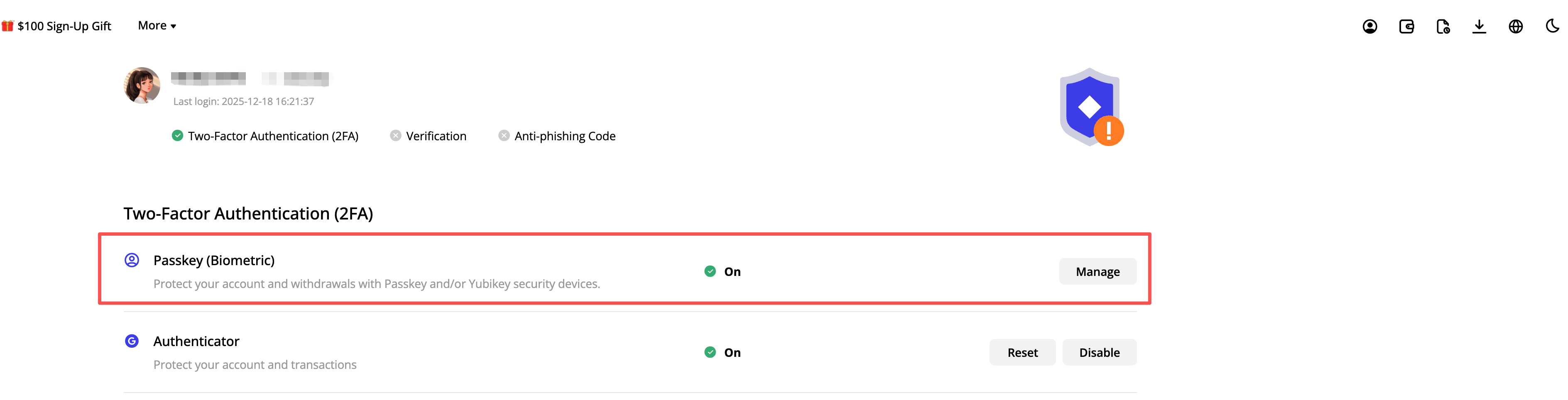
Step 2: To enable a passkey, ensure your account has a verified email. Adding a passkey requires both an email verification code and an Authenticator/Mobile verification code.
Step 3: Complete the passkey setup.
Option 1: Use this device as a passkey. Click [Continue] and complete the biometric authentication (like fingerprint or face ID) or enter your password on your device.
Option 2: Create a passkey on another device. Click [Store on another device], use another device to scan the QR code, and then complete the authorization on that device. (Note: For this method, your phone or tablet's operating system must be updated to at least iOS 16.0.0 or Android 7.0).
Option 3: Use a USB security key. Click [USB Security Key], insert the USB key into your computer, and follow the browser prompts to complete the setup.
View details and log in:
Once you successfully create a passkey, you can view its details on the passkey management page. You can also rename your passkey for easier identification.
When verification is required, you can choose to use your passkey for a quick and easy authentication process.