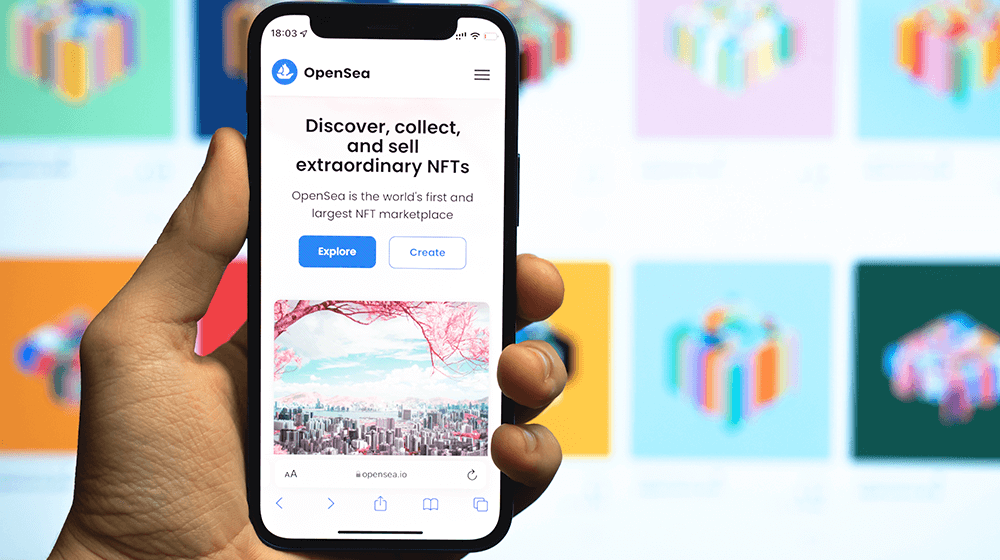
In this article, You will learn how to link MetaMask to OpenSea. OpenSea is a decentralized marketplace for buying, selling, and trading non-fungible tokens (NFTs), which are unique digital assets. Connecting your Metamask Wallet to OpenSea provides a secure and reliable way to buy NFTs right from your browser.
How to Link MetaMask to OpenSea?
To link your MetaMask wallet to OpenSea, you can follow these steps:
- Install and set up MetaMask: If you haven't already, you will need to install the MetaMask extension in your browser and create a wallet.
- Connect your MetaMask wallet to OpenSea: Once you have created a wallet, go to OpenSea's website and click "Sign In" in the top right corner. Then, select "MetaMask" as your wallet provider.
- Allow access to your wallet: MetaMask will prompt you to allow OpenSea to access your wallet. Click "Connect" to grant access.
- Access your wallet on OpenSea: Once you have connected your MetaMask wallet to OpenSea, you should be able to access your wallet and view your cryptocurrency balances on the OpenSea platform. You can also use your MetaMask wallet to buy, sell, and trade digital assets on OpenSea.
How to Transfer NFT from OpenSea to Metamask?
To transfer an NFT from OpenSea to MetaMask, you can follow these steps:
- Open your MetaMask wallet: Open your MetaMask wallet in your browser or mobile app.
- Go to OpenSea: Go to OpenSea's website and click on "My Account" in the top right corner. Log in to your account if prompted.
- Find the NFT you want to transfer: Navigate to the NFT you want to transfer by clicking on "Activity" or "Purchases" in the top right corner, depending on whether you bought the NFT or received it as a gift.
- Transfer the NFT: Click on the NFT you want to transfer and select "Transfer" from the dropdown menu. Enter the recipient's address (in this case, your MetaMask wallet address) and click "Transfer."
- Confirm the transaction: MetaMask will prompt you to confirm the transaction. Review the details and click "Confirm" to complete the transfer.
- Check your MetaMask wallet: Once the transaction is confirmed, the NFT should appear in your MetaMask wallet under the "Assets" tab.
How to Disconnect Metamask from OpenSea?
To disconnect MetaMask from OpenSea, you can follow these steps:
- Open your MetaMask wallet: Open your MetaMask wallet in your browser or mobile app.
- Go to OpenSea: Go to OpenSea's website and log in to your account.
- Click on "My Account": Click on "My Account" in the top right corner of the page.
- Select "Connected Wallets": Select "Connected Wallets" from the dropdown menu.
- Disconnect MetaMask: Find MetaMask in the list of connected wallets and click "Disconnect" next to it.
- Confirm disconnection: MetaMask will prompt you to confirm that you want to disconnect. Click "Disconnect" to confirm.
Once you have disconnected MetaMask from OpenSea, you will no longer be able to access your MetaMask wallet on the OpenSea platform.
Bottom Line
Make sure to do your research and understand the risks involved before buying or selling NFTs on OpenSea, and consider storing your digital assets in a secure wallet. This article is about how to link MetaMask to OpenSea.